
Scripts and Topics Configuration for your SmartiePal AI assistant (step-by-step tutorial)
17 November 2025Welcome to the next tutorial in the series where you create and set up your own SmartiePal assistant. In the previous tutorial, you learned how to configure Human Support Mode settings. Today, we're exploring Scripts and Topics – two powerful features that let you guide your assistant's responses and create specialized behaviors for different conversation scenarios.
By the end of this tutorial, you'll understand how to create custom scripts, set up topic buttons, and see how these features work together to enhance the user experience. Whether you want to format responses consistently, provide quick-start conversation options, or combine multiple instruction layers, scripts and topics give you complete control.
Understanding Scripts
Let's begin by understanding what scripts are and how they work. Scripts are specialized instructions that guide your assistant's behavior. Think of them as custom prompts that tell your assistant how to respond in specific ways. The power of scripts lies in their flexibility – you can assign them at different levels to create layered behaviors.
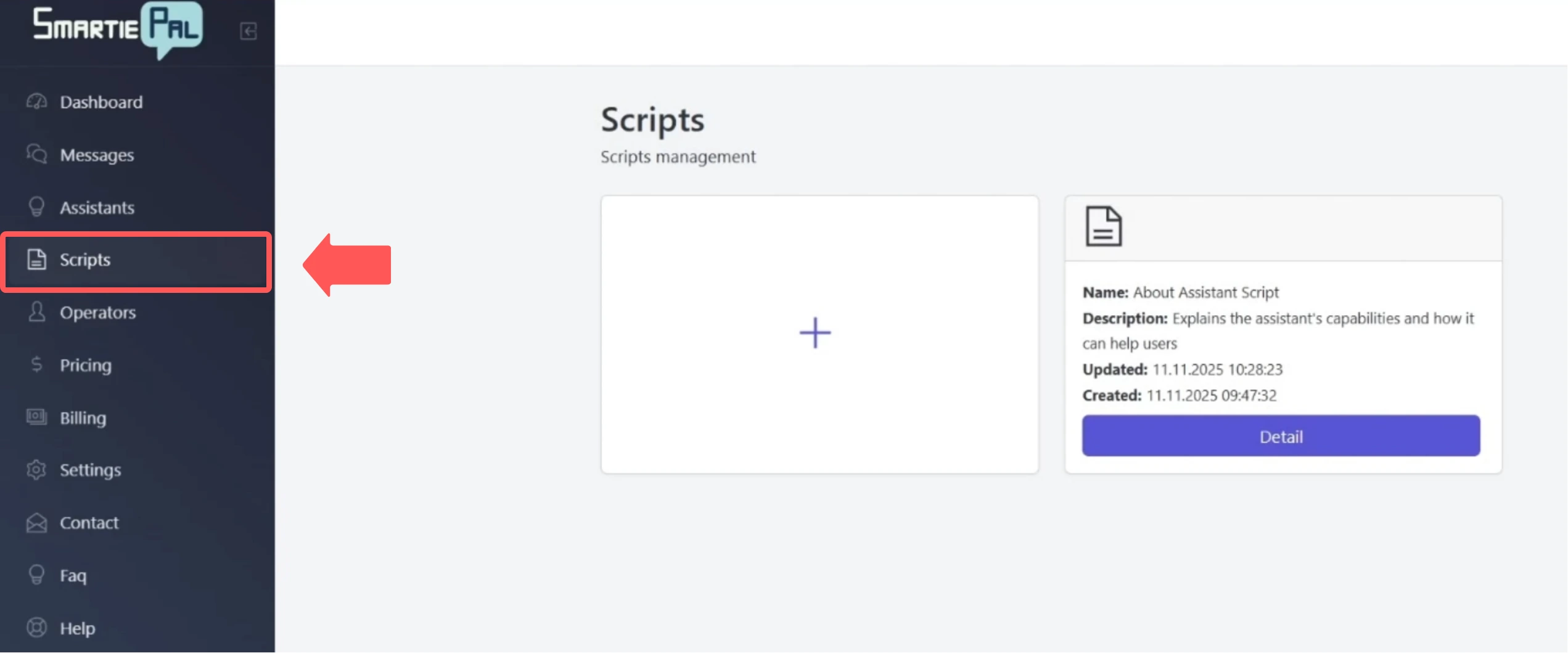
To get started, navigate to the Scripts section from the main menu on the left side of your dashboard.
Step 1: Explore Existing Scripts
The Scripts page displays all your existing scripts in an easy-to-navigate card format. When you first access this page, you may see some default scripts already created. For example, you might find an "About Assistant Script" that's been set up to help explain your assistant's capabilities.
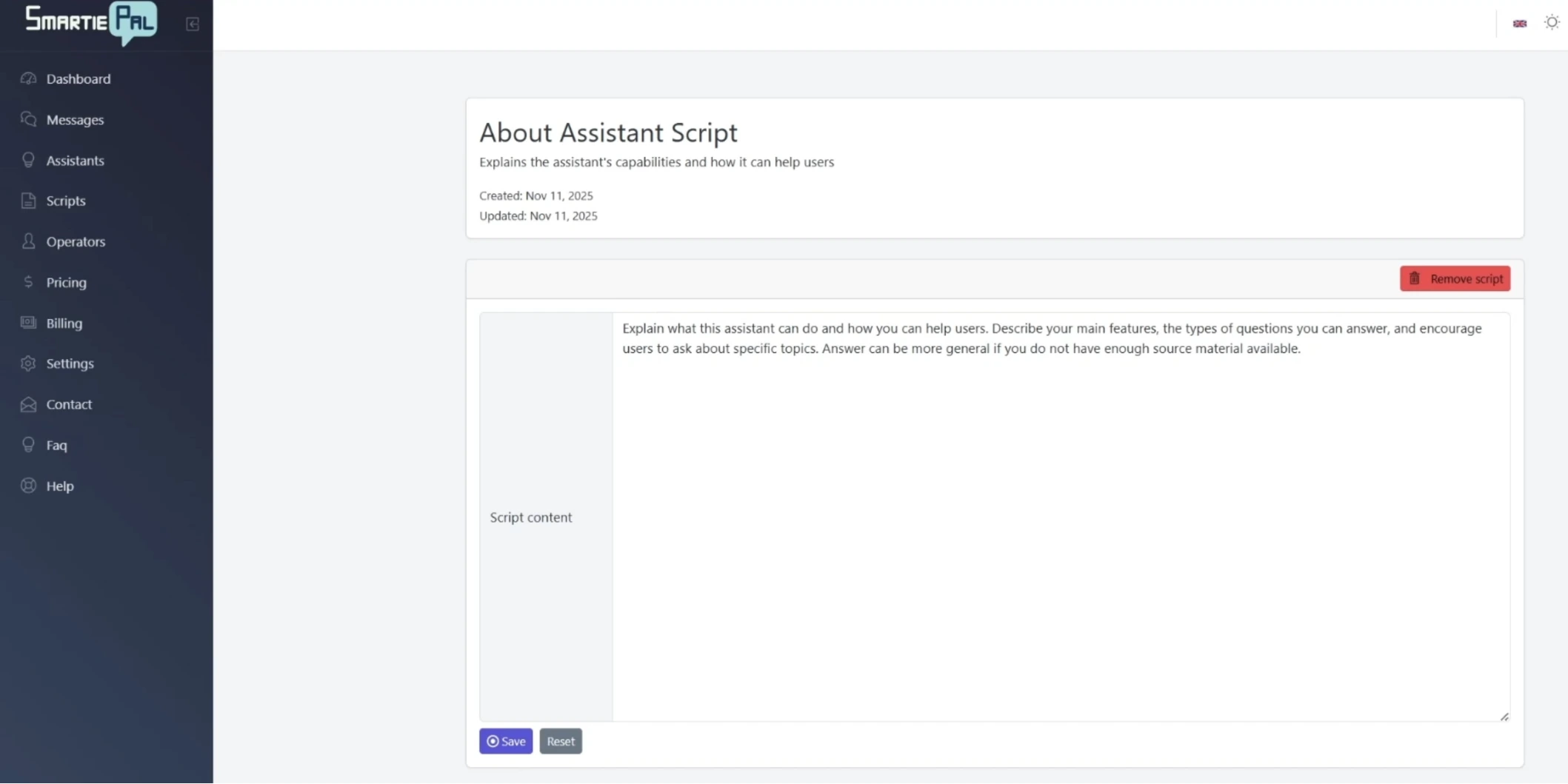
Click on the Detail button of any existing script to see its structure. You'll notice three key elements: the script name, a description that explains what the script does, and most importantly, the script content field.
Step 2: Examine Script Structure
The script content field contains the actual instructions for your assistant. This is where you define how your assistant should behave when the script is active. For instance, a typical "About Assistant Script" might include instructions like: "Explain what this assistant can do and how you can help users. Describe your main features, the types of questions you can answer, and encourage users to ask about specific topics."
These instructions act as a specialized prompt that guides the assistant's behavior whenever the script is executed.
Creating Custom Scripts
Now that you understand how scripts work, let's create a new one from scratch. This will demonstrate the full process and give you hands-on experience with the script creation interface.
Step 3: Create a New Script
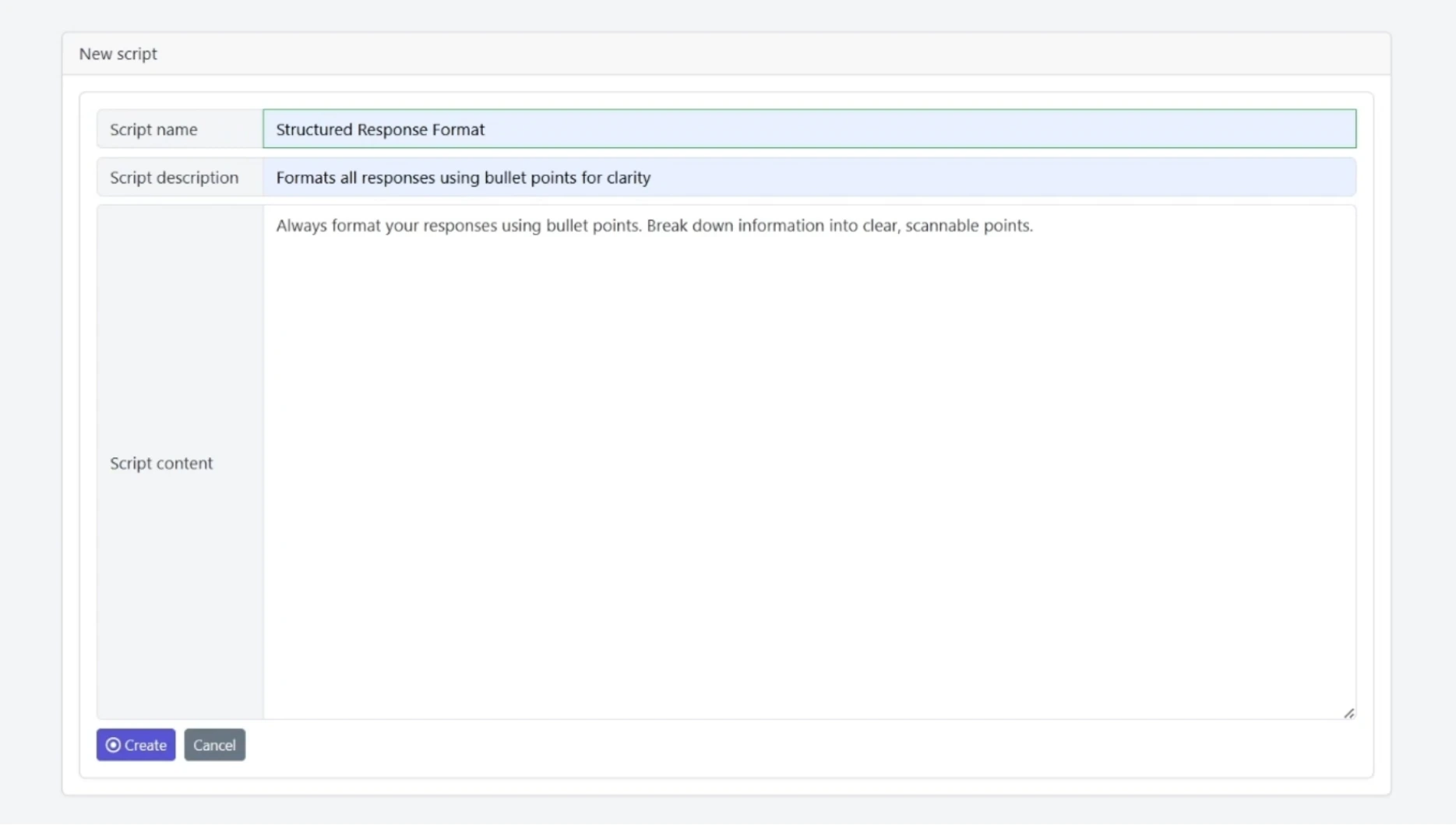
From the Scripts page, click the plus icon to start creating a new script. You'll be presented with a form to fill out.
For the Script name, let's call this "Structured Response Format." This name helps you identify the script's purpose at a glance.
For the description field, write something clear and concise like: "Formats all responses using bullet points for clarity." This description helps you and your team understand what the script does without opening the full details.
Step 4: Define Script Content
In the Script content field, you'll write the actual instructions. For our structured response format script, enter: "Always format your responses using bullet points. Break down information into clear, scannable points."
These instructions will be followed by your assistant whenever this script is active. The key is to be clear and specific about the behavior you want to achieve.
Click Create to save your new script. You now have multiple scripts ready to use in different ways.
Assigning Scripts to Your Assistant
Here's where the real power of scripts becomes apparent. Scripts can be assigned at two different levels: directly to an assistant, or to specific topics. Understanding this distinction is crucial.
Scripts assigned directly to an assistant are executed every time the assistant responds in AI mode. These are your "always-on" behaviors that shape every interaction. However, scripts can also be assigned to specific topics – and when a topic is clicked, that topic's script runs alongside any assistant-level scripts.
Step 5: Assign a Script to the Assistant
Navigate to your assistant's settings page and click on the Scripts tab. Here you'll see all scripts that are currently assigned to this assistant.
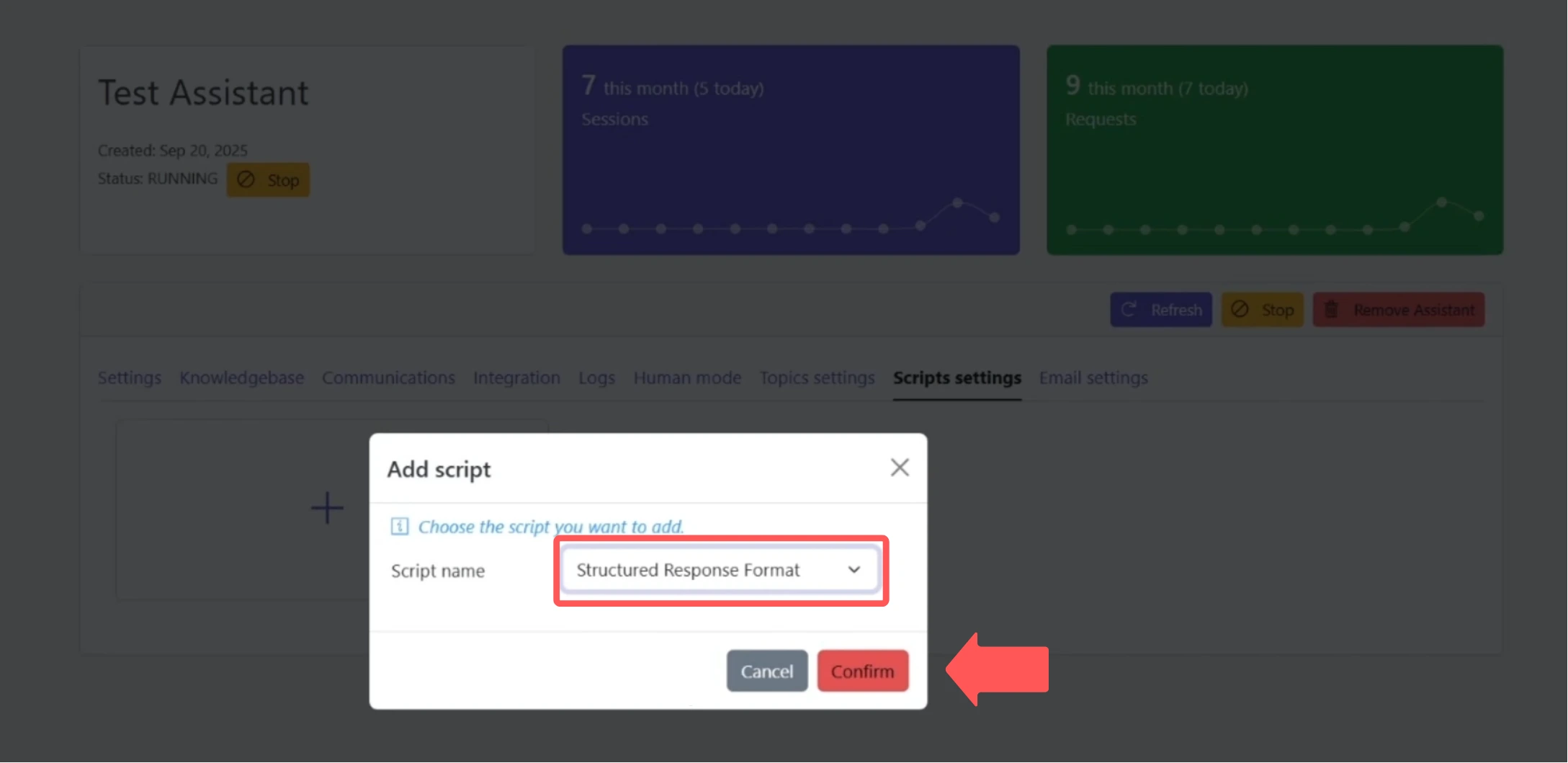
Click the plus icon and select "Structured Response Format" from the dropdown menu. Click Confirm to save this assignment.
This script is now assigned to the assistant, which means every response in AI mode will use bullet points for formatting. Notice that we're not assigning the "About Assistant Script" to the assistant itself – we'll reserve that for a specific topic instead.
Creating and Configuring Topics
Topics are quick-start conversation buttons that appear in your chat widget. They provide users with convenient entry points for common questions or conversation paths. Each topic can have its own dedicated script that executes only when that specific topic is clicked.
Step 6: Create a New Topic
Navigate to the Topics settings tab within your assistant's configuration. This is where you'll manage all topic buttons that appear to your users.
Click the plus icon to add a new topic. You'll need to fill out several fields to configure the topic properly.
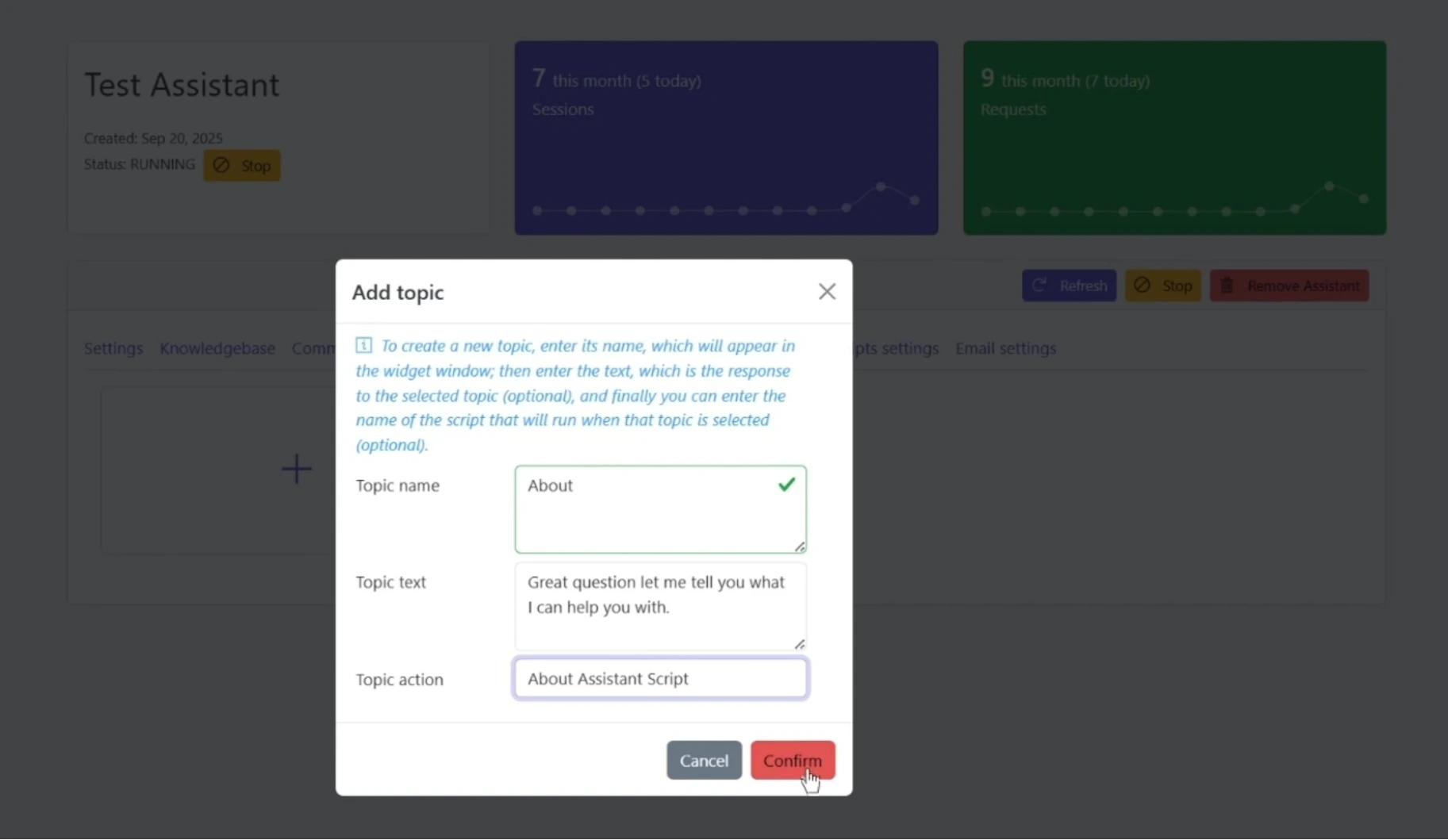
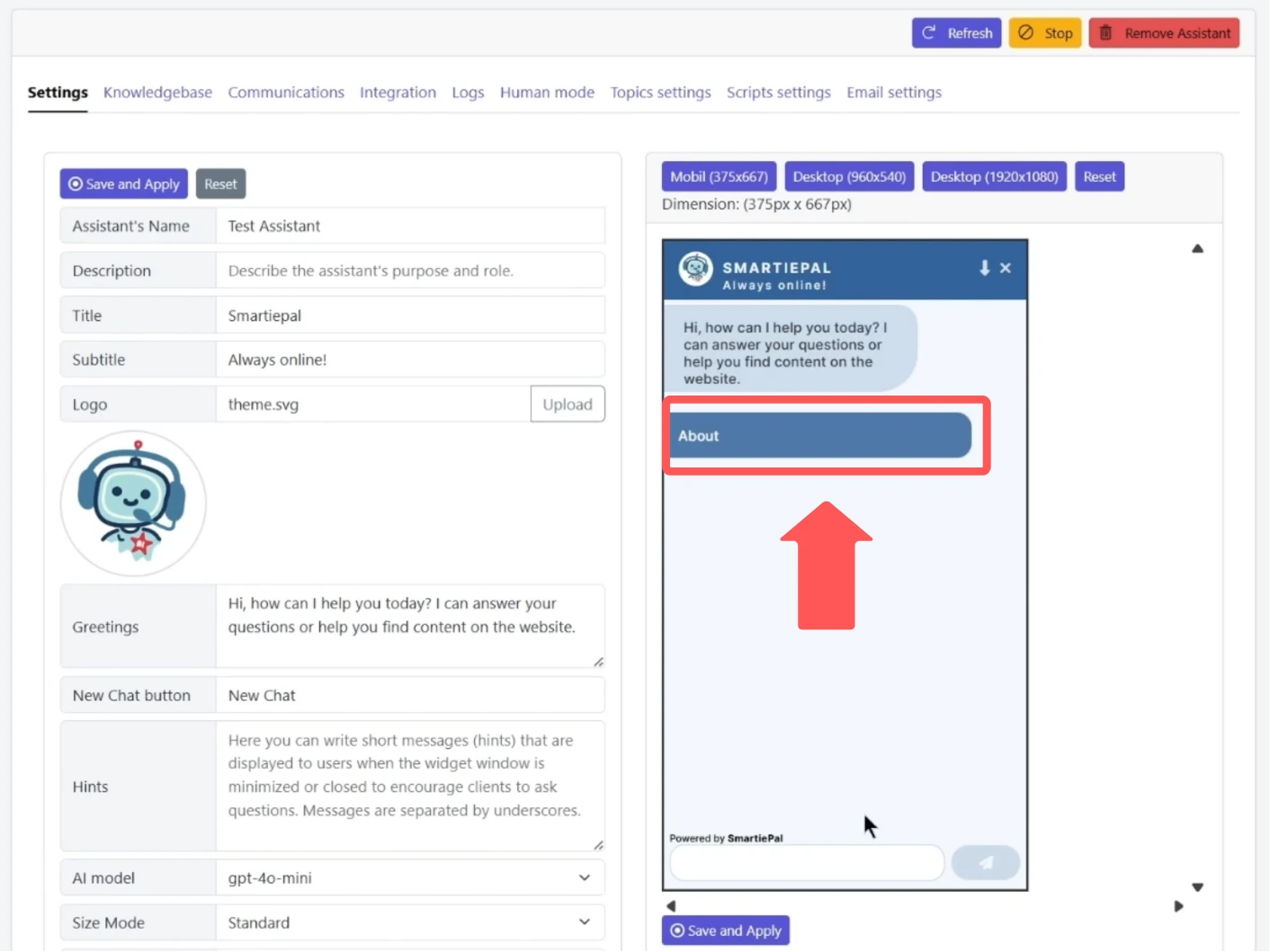
For the Topic name, let's call it "About." This is what users will see on the button in the chat interface.
Step 7: Configure Topic Text and Script
For the Topic text field, this is the message that will be sent on behalf of the user when they click the topic button. Let's write: "Great question! Let me tell you what I can help you with."
Now here's the key part – in the Topic action field, you'll assign a script. Type "About Assistant Script" to select it. Notice that we're assigning a script here that's not assigned to the assistant itself.
This is perfectly valid and actually very powerful. The script will only execute when this specific topic is clicked, but it will run alongside the assistant's general "Structured Response Format" script. This layered approach gives you tremendous flexibility.
Click Confirm to save your topic configuration.
Testing Your Configuration
Now that we've configured both scripts and topics, let's see how everything works together in practice. This will help you understand the interaction between assistant-level scripts and topic-specific scripts.
Step 8: Verify AI Mode Status
Navigate to the Settings tab where your assistant preview is running. Before testing, it's important to verify that your assistant is in AI support mode. Remember that scripts only execute when the assistant is in AI mode – they do not work in human mode.
Step 9: Test Assistant-Level Script
First, let's test a regular question without using any topic buttons. Type a general question in the chat interface and observe the response.
You should notice that the response is formatted with bullet points. This is your "Structured Response Format" script working as intended, since it's assigned directly to the assistant. Every response will follow this format regardless of what question is asked.
Step 10: Test Topic-Specific Script
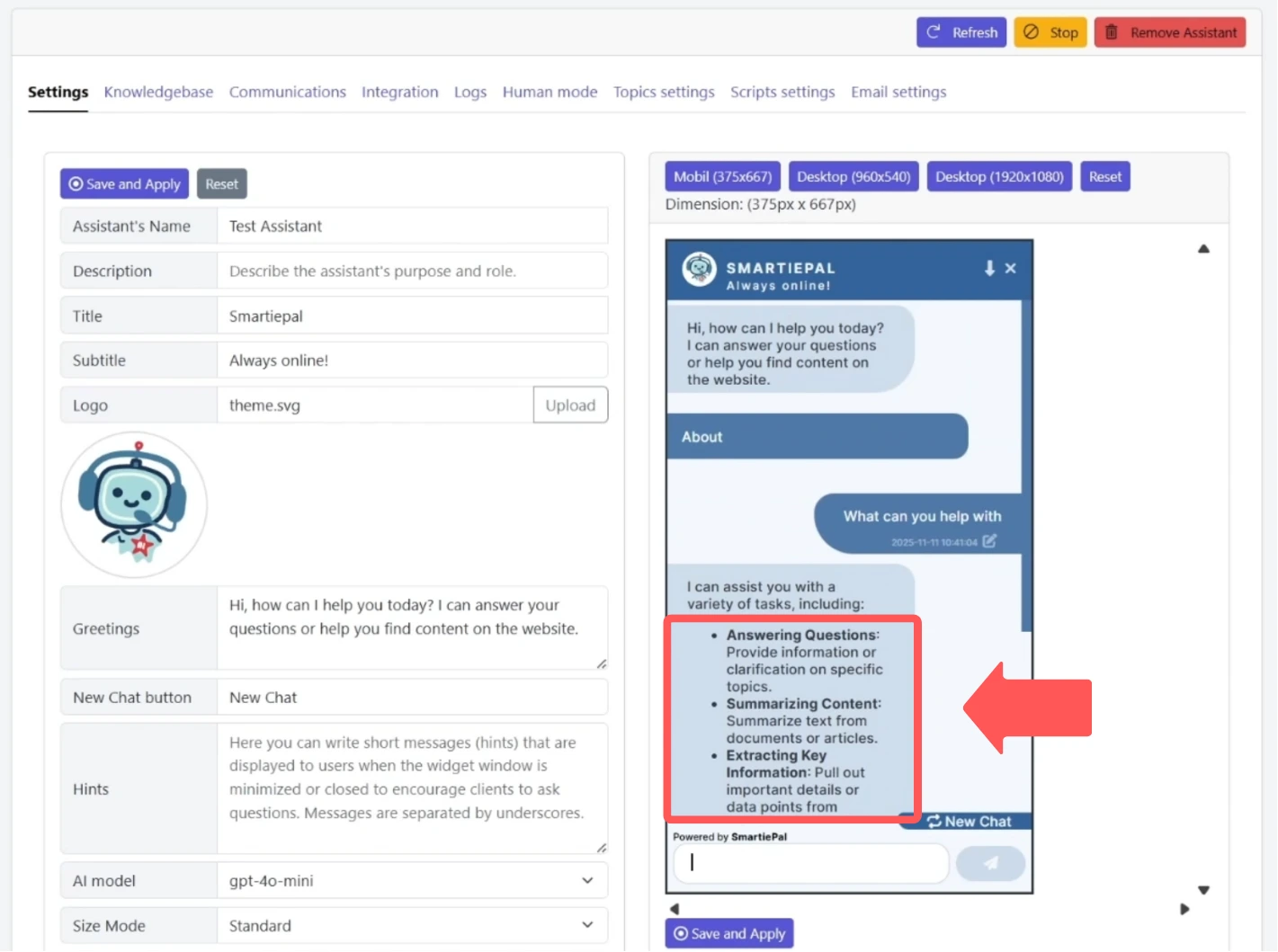
Now let's test the topic button we created. Click on the "About" topic button in the chat widget.
Observe what happens: The assistant provides a response explaining its capabilities and how it can help users – that's the "About Assistant Script" executing because we assigned it to this specific topic. However, notice that the response still uses bullet points from the assistant-level "Structured Response Format" script.
Both scripts are working together! The topic-specific script provides the content focus (explaining capabilities), while the assistant-level script provides the formatting (bullet points). This demonstrates the power of layered script execution.
Understanding Script Execution Priority
It's important to understand how scripts interact with each other. When a user interacts with your assistant, different scripts may execute depending on the context:
Assistant-level scripts always execute for every AI mode response. Topic-specific scripts execute only when their associated topic is clicked, but they work alongside assistant-level scripts rather than replacing them. This means you can create general scripts that shape all responses, and specific scripts that only activate for certain conversation topics.
Importantly, scripts don't need to be assigned to the assistant to be used in topics. You can create specialized scripts that only exist at the topic level, giving you complete control over different conversation paths.
Best Practices for Scripts and Topics
To make the most of scripts and topics, consider these strategies:
Use assistant-level scripts for formatting, tone, and behaviors that should apply universally across all conversations. Create topic-specific scripts for specialized knowledge areas or conversation flows that only make sense in specific contexts. Keep scripts focused – each script should have a clear, single purpose rather than trying to do too much at once.
Remember that scripts only work in AI support mode. If your assistant is in human mode, the scripts will not execute, and human operators will handle the conversation directly.
Summary
To summarize what we've covered today:
- Scripts are specialized instructions that guide your assistant's behavior, acting as custom prompts that execute when active
- Scripts assigned to an assistant execute with every AI response, providing consistent behaviors across all conversations
- Topics are quick-start conversation buttons that provide users with convenient entry points for common questions
- Scripts assigned to topics execute only when that specific topic is clicked, but they work alongside assistant-level scripts to create layered behaviors
- Scripts don't need to be assigned to the assistant to be used in topics, giving you complete flexibility in how you structure conversation flows
- Remember that scripts only work in AI support mode – they don't execute when your assistant is in human mode
Together, these features let you create a sophisticated, layered conversation experience. You can mix and match assistant-level and topic-specific scripts to create exactly the user experience your customers need, with the flexibility to adjust and refine over time.
In the next tutorial, we'll continue exploring more advanced features of the SmartiePal platform to help you get even more value from your AI assistant.
Ready to create your custom scripts and topics? Sign up and start building your perfect assistant configuration today.