
Integration and Operators Management for your SmartiePal AI assistant (step-by-step tutorial)
18 October 2025Welcome to the next tutorial in our SmartiePal series. In the previous tutorial, you learned about the platform's navigation structure and how to monitor conversations through the communications and logs sections. Now it's time to explore one of the most powerful features of SmartiePal—the ability to blend AI automation with human expertise.
In this comprehensive guide, you'll discover how to create and manage operators who can handle conversations, integrate your assistant with Telegram for expanded accessibility, and configure the perfect balance between automated AI responses and personalized human support. By the end of this tutorial, you'll have all the tools needed to build a hybrid support system that combines the efficiency of AI with the personal touch of human interaction.
Understanding Operators and Integrations
The integration features and operators management form the backbone of SmartiePal's hybrid support system. Operators are team members who can interact directly with users through the SmartiePal mobile / browser app or via Telegram integration, providing human support when AI responses aren't sufficient or when situations require a personal touch.
This flexible system allows you to assign different operators to specific assistant and control how they communicate with users across multiple channels. Whether you're running a small business with a single support person or managing a large team across different departments, the operators system scales to meet your needs.
Step 1: Access the Operators Section
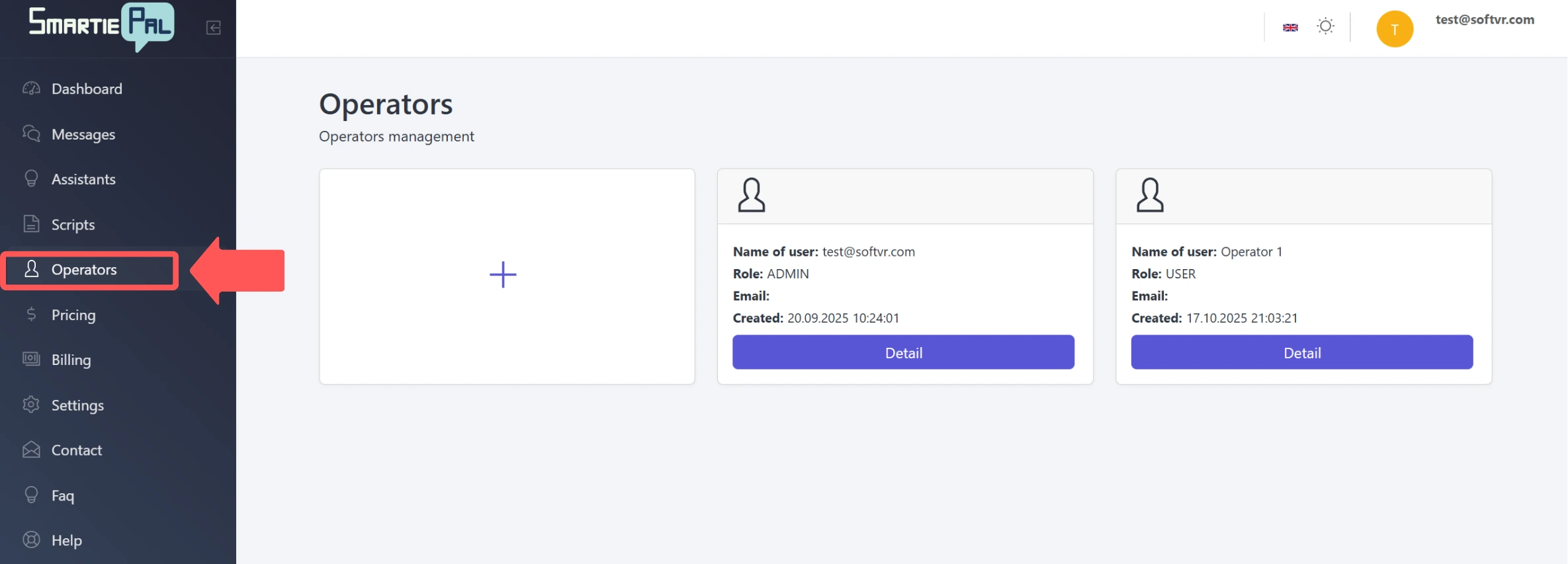
Navigate to the Operators section in the main navigation menu on the left side of your dashboard. This is your central hub for managing all team members who will be providing human support through your SmartiePal assistants.
When you first open this section, you'll see a management interface that displays all your current operators. The layout makes it easy to see at a glance who has access to your support system and manage their settings efficiently.
Step 2: Understanding Operator Profiles
Each operator in your system has a detailed user profile containing essential information. The profile includes the name of the user, which identifies the operator within your team, an email address field (which is optional but recommended for account recovery and notifications), and the creation date, showing when the operator account was established.
Step 3: Create a New Operator
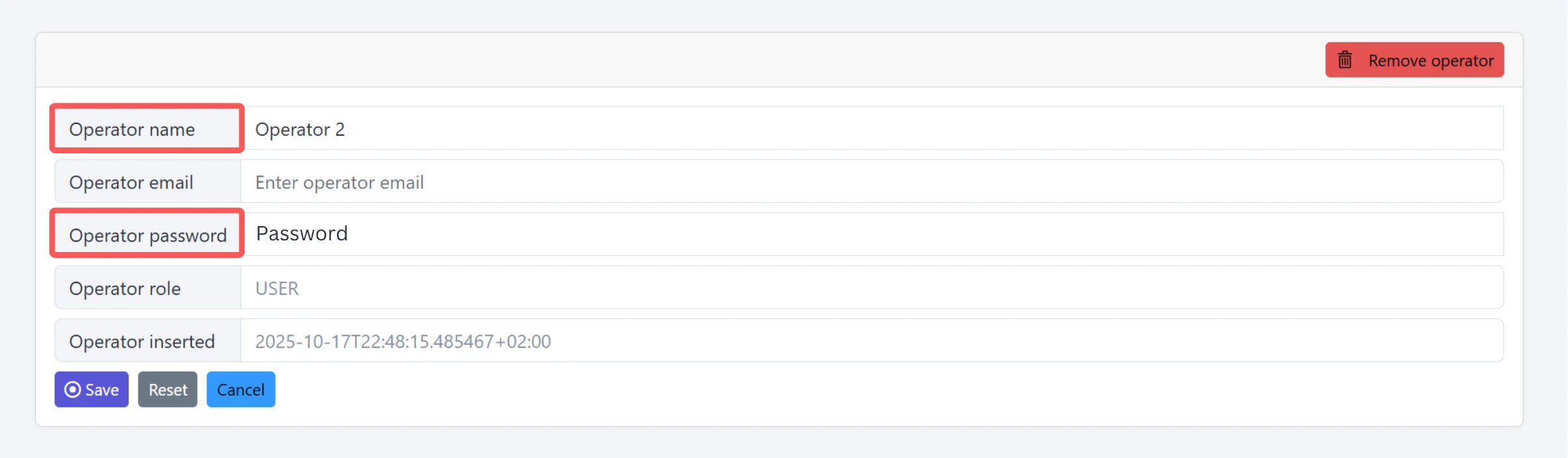
Adding a new operator to your team is straightforward. Simply click the plus sign button, and you'll be presented with a form asking for the necessary basic information. Fill in the operator's name and optionally their email address to create their account.
An important feature to note: the operator's password will be generated automatically by the system. However, you retain full control and you can change this password later in the settings tab of the specific operator if needed for any reason.
Connecting Operators to Assistants
Now that you understand how to create operators, let's explore how to connect these operators with specific assistants. This connection determines which team members can handle conversations for which AI assistants, allowing you to organize your support structure effectively.
Step 4: Navigate to Assistant Integration Settings
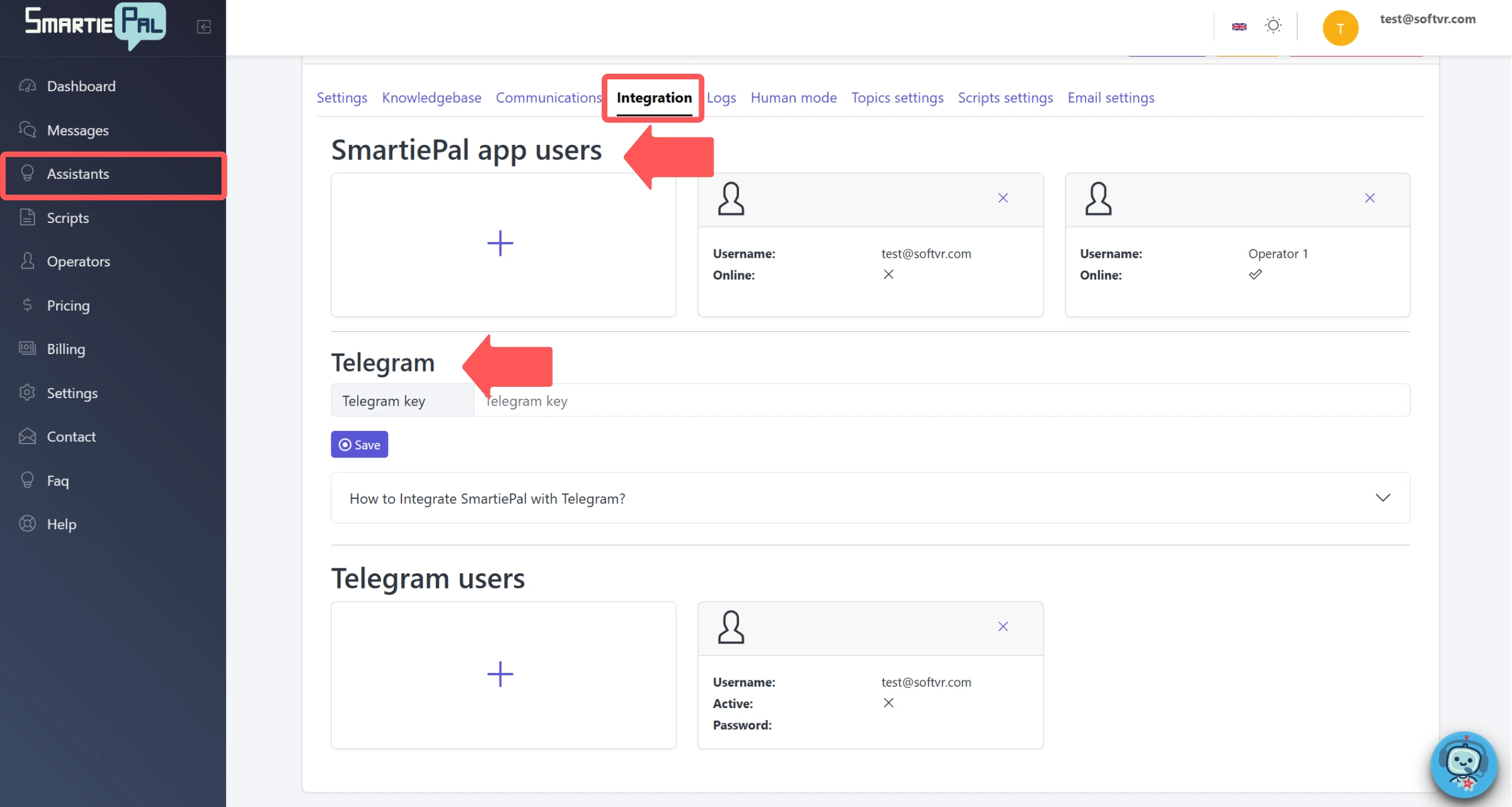
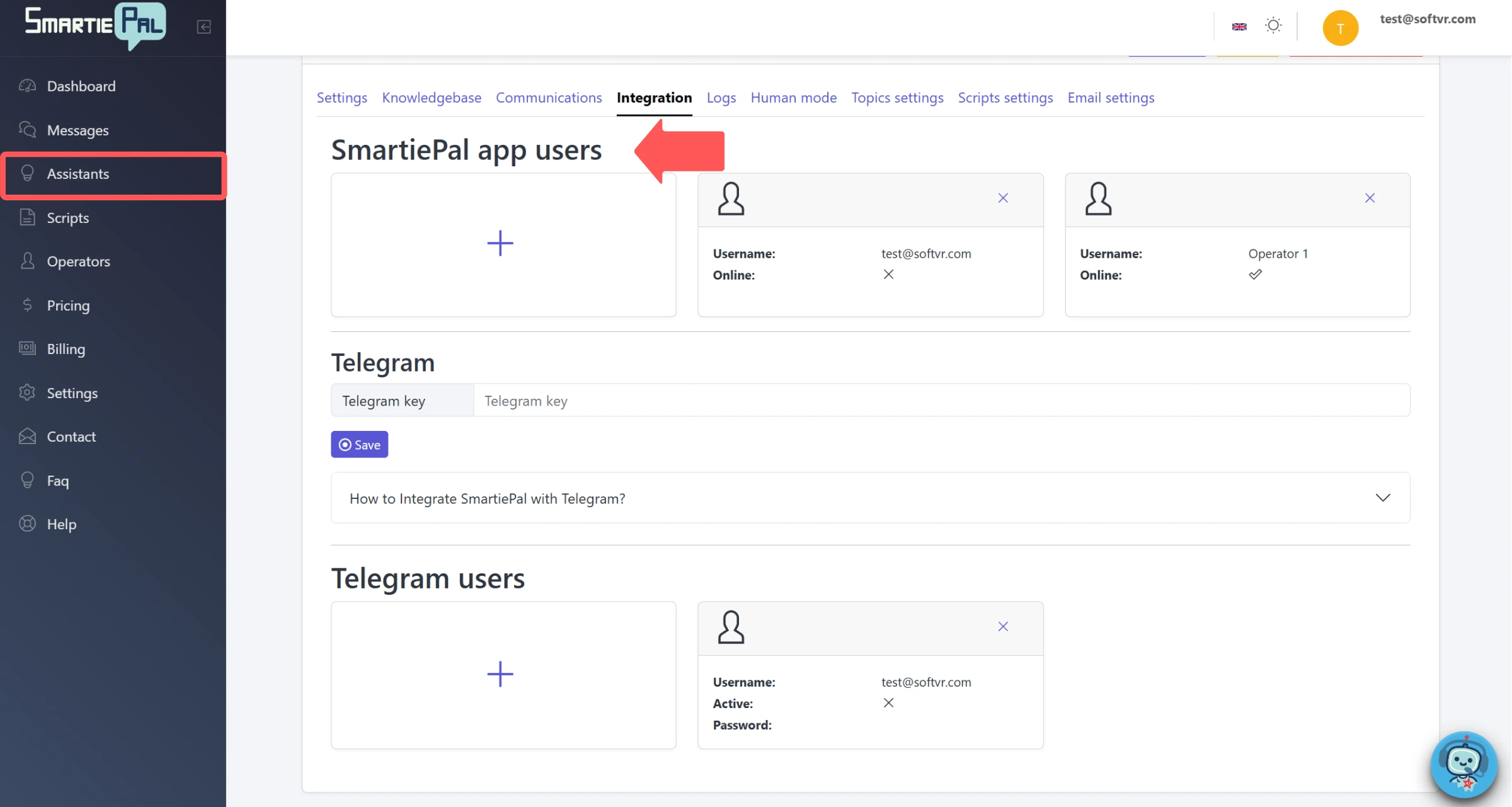
Select any of your assistants from the Assistants section in the main menu. Once you're viewing your assistant's details, navigate to the Integration tab. This is where you'll configure how operators and external platforms connect to this specific assistant.
The Integration tab is organized into two main sections that work together to provide comprehensive support options. Understanding these sections will help you build a robust support system that works across multiple channels.
Step 5: Assign Operators to the Assistant
In the first section labeled SmartiePal App Users, you can assign operators to this specific assistant. This is where you determine which members of your team will have access to view and respond to conversations for this particular assistant.
You have two options here: you can add existing operators that you've already created, or you can create new operators directly from this interface if you need to quickly onboard someone new. When assigned, these operators will have access to view and respond to conversations for this specific assistant through the operator dashboard.
Setting Up Telegram Integration
The second major component of the Integration tab allows you to connect your assistant with Telegram, expanding your support channels beyond the web interface. This integration provides your operators with another powerful channel to communicate with users, meeting customers where they prefer to interact.
Step 6: Understanding Telegram Integration
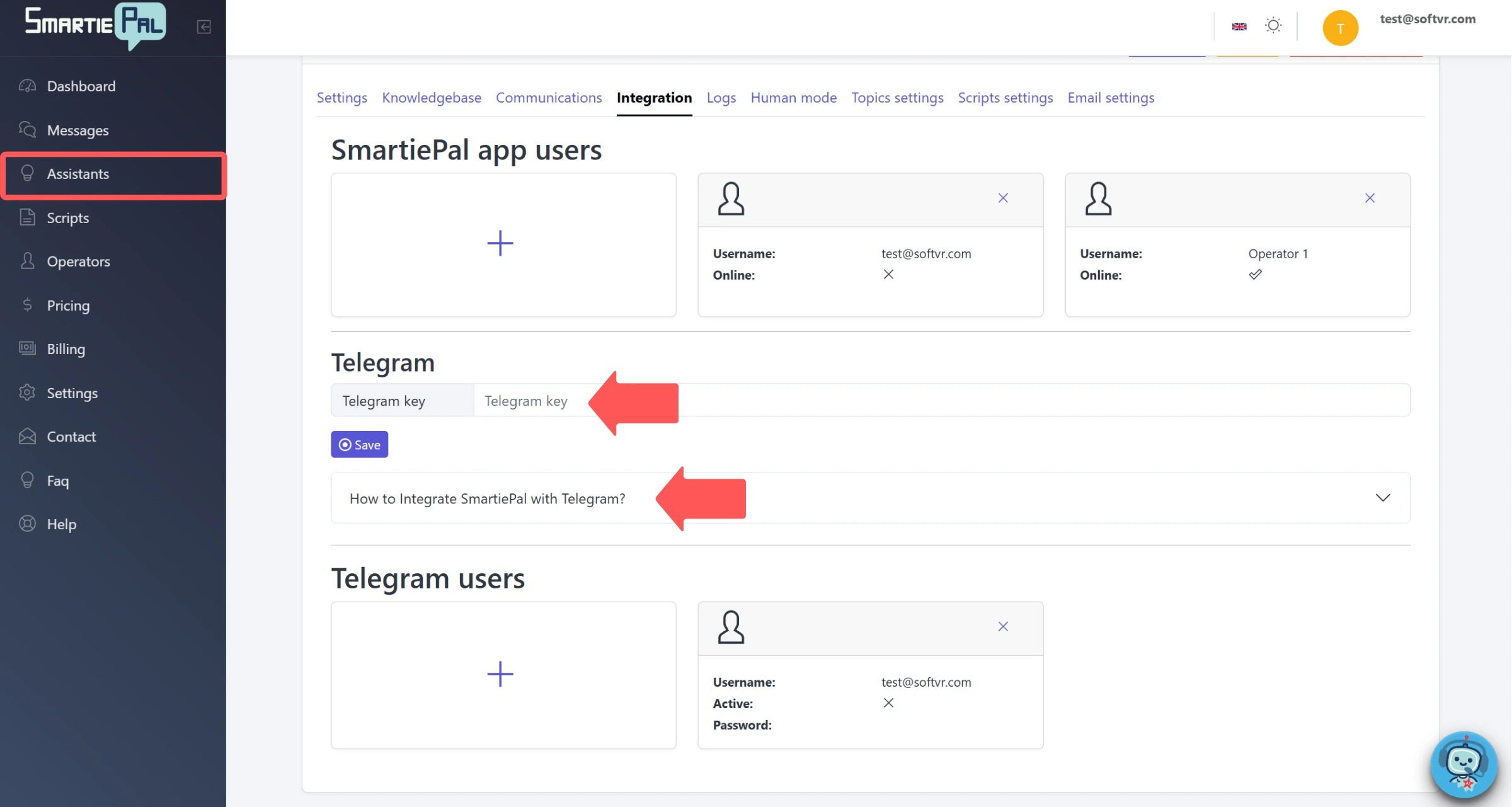
The Telegram Integration section provides a comprehensive guide that walks you through the complete setup process.
The integration requires several key steps that we'll outline here. While the process involves multiple stages, each one is straightforward, and the platform provides clear guidance throughout.
Step 7: Set Up Your Telegram Bot
The main steps for Telegram integration include setting up a Telegram bot using BotFather, Telegram's official bot creation tool. BotFather is a special bot that helps you create and manage other bots on the Telegram platform.
After creating your bot through BotFather, you'll obtain an API token, which is a unique identifier that allows SmartiePal to communicate with your Telegram bot. This token acts as a secure key that connects the two platforms.
Next, you'll add the token to the SmartiePal platform in the Telegram Integration section. Simply paste the Telegram key you received from BotFather into the designated field. Finally, you'll test the connection to ensure everything is working correctly before going live.
Step 8: Assign Operators to Telegram
Once your Telegram integration is active, you can assign operators to handle Telegram conversations. Operators who are assigned to this assistant through the Telegram integration section can communicate with users via Telegram.
Working as an Operator
Now that you understand how to create and assign operators, let's explore what the experience is like from an operator's perspective. This will help you understand how your team members will interact with the system and manage customer conversations.
Step 9: Access the Operator Dashboard
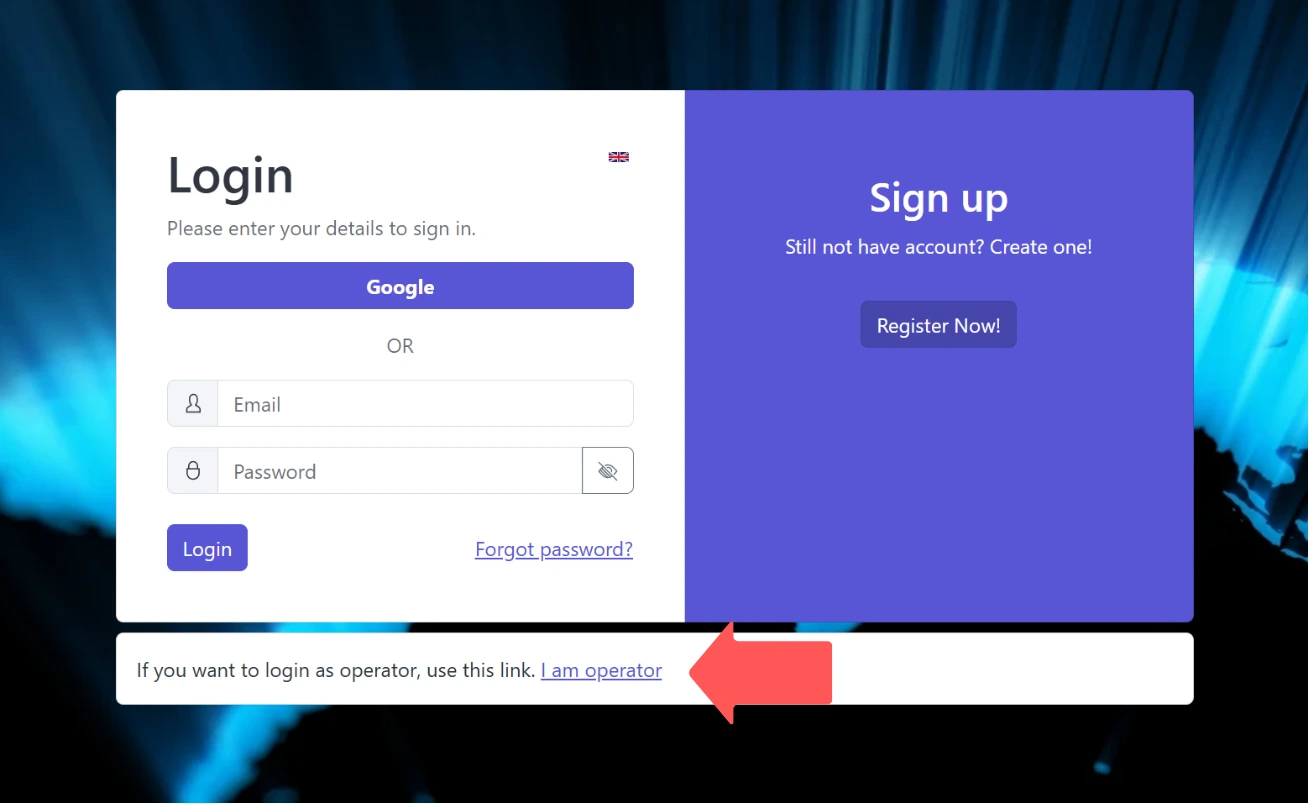
To work as an operator, you'll need to log in to the SmartiePal Operator Dashboard through its dedicated entry point in the login tab. This is a separate interface from the main administrative dashboard, specifically designed for operators to manage conversations efficiently.
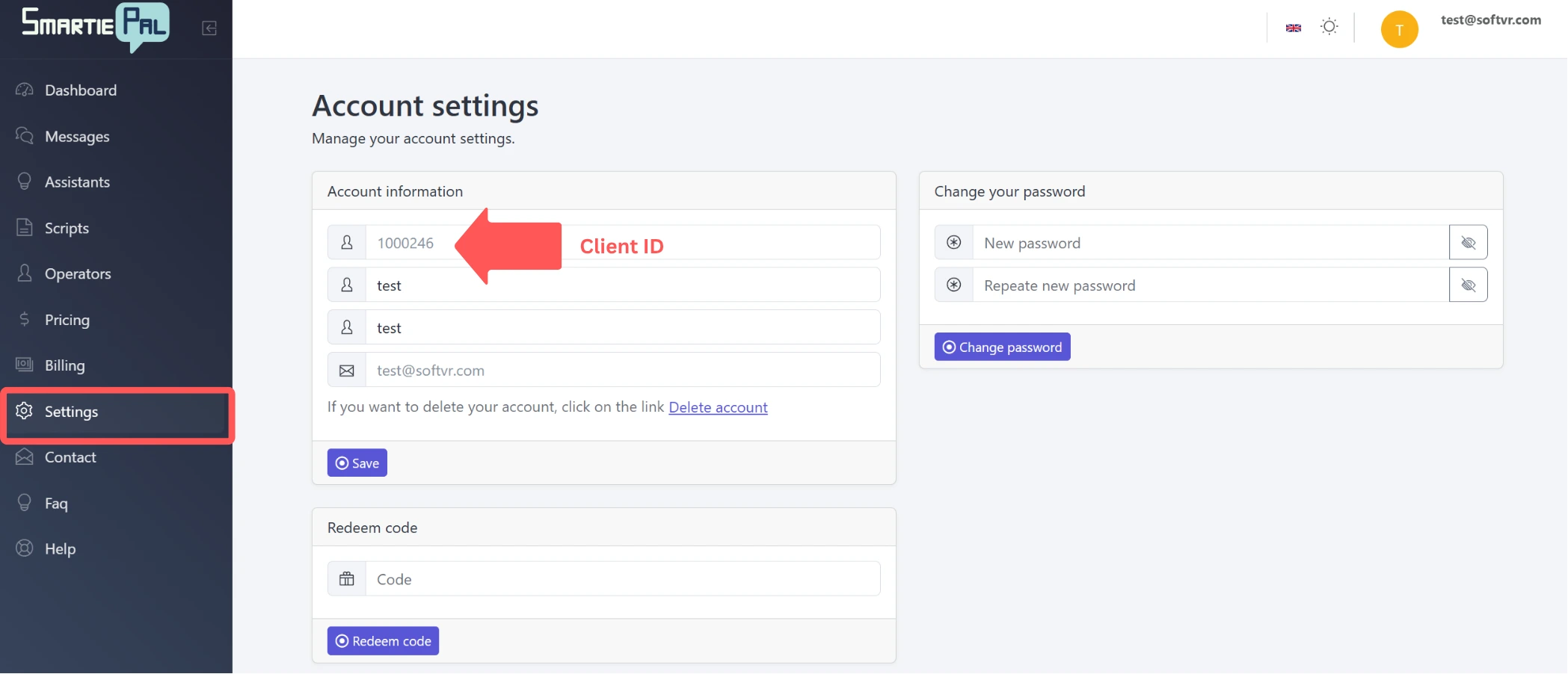
To log in, you'll need three pieces of information: the operator's credentials (username and password), which you can always find and adjust in the Operators section of the Admin dashboard, and the client ID, which can be found in the Settings section of the main dashboard.
Step 10: Navigate the Operator Interface
Once logged in, operators will see a different interface focused entirely on conversation management. This streamlined design helps operators focus on what matters most—communicating effectively with users.
In this view, operators can see all ongoing conversations for assistants they have access to, making it easy to monitor active support requests. They can filter conversations by various criteria, including unanswered messages and different categories, helping them prioritize their work efficiently.
Importantly, operators can filter by specific assistants, since one operator can be assigned to take care of multiple assistants.
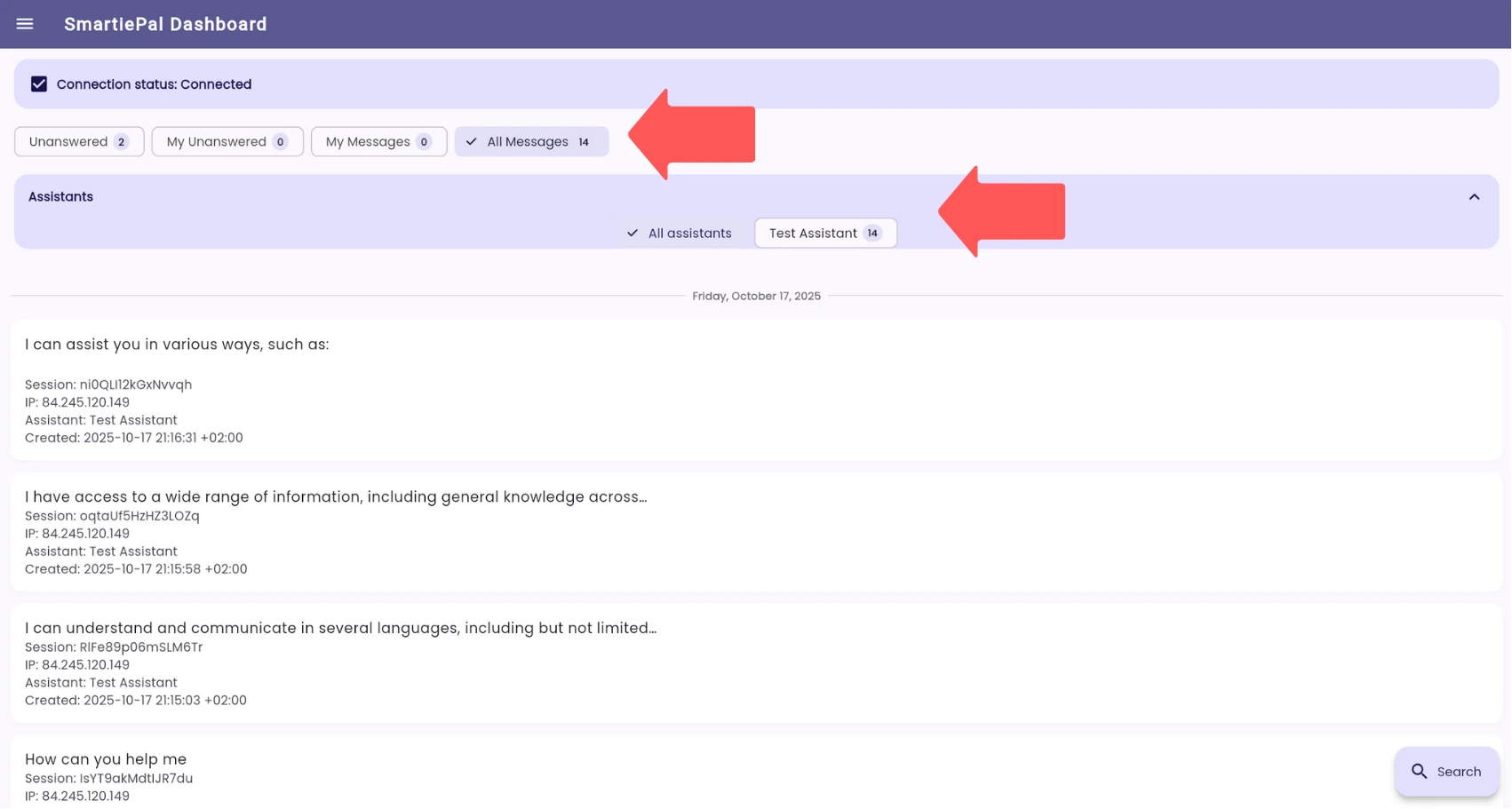
Step 11: Manage Individual Conversations
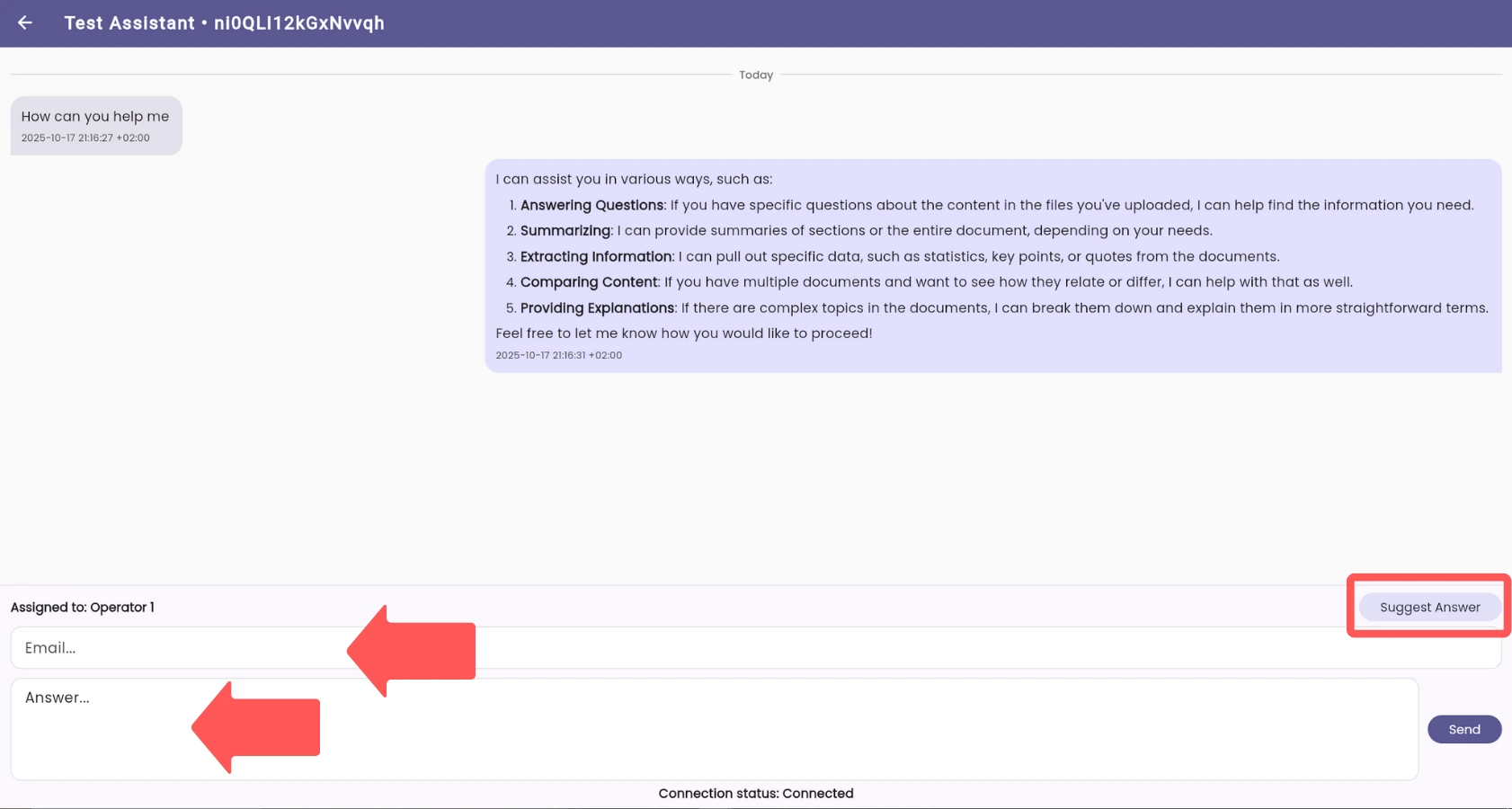
Operators can select individual conversations to view the complete message history. This provides full context for each interaction, allowing operators to understand the customer's journey and previous interactions before responding.
Most importantly, operators can respond manually to users' inquiries by taking over the conversation from the AI. This human takeover capability is what makes SmartiePal's hybrid approach so powerful—the AI handles routine questions efficiently, while humans step in for complex or sensitive situations.
Step 12: Respond to Users
When reviewing a conversation, operators have two flexible options for responding. First, they can type their own response directly, giving them complete control over the message content and tone. This is ideal for situations requiring personalized attention or when the operator wants to add a specific human touch.
Alternatively, they can use the Suggest Answer button, which leverages the AI to generate a draft response. This feature speeds up response times while maintaining quality—operators can edit the AI-generated draft before sending, ensuring accuracy and appropriateness while benefiting from AI assistance.
Step 13: Use Email Communication
If a user provides an email address during the conversation, the system will automatically load it in the email field, allowing operators to send the response via email. This provides an additional communication channel that some customers prefer, especially for detailed responses or follow-up information.
However, for this feature to work properly, you need to set up the appropriate parameters in the email settings section, which will be covered in detail in a future tutorial.
Summary
Now you've successfully learned how to set up and manage SmartiePal's integration and operator features. Let's summarize what we have discussed today:
- The Operators section allows you to create and manage team members who can respond to conversations.
- The Integration tab connects these operators to specific assistants and enables Telegram integration, expanding your support channels and providing flexibility in how you engage with customers.
- Operators use a dedicated dashboard to review and respond to conversations, with specialized tools designed specifically for efficient conversation management.
- Human-AI collaboration enables you to combine the efficiency of AI with the personal touch of human operators, creating a support system that delivers both speed and quality.
This hybrid approach represents the future of customer support—leveraging AI to handle routine inquiries while ensuring human expertise is available when it matters most. Your team can now work more efficiently, focusing their attention where human judgment and empathy make the biggest difference.
In the next tutorial, we'll dive deeper into the human support mode settings, which offer even more advanced configuration options for how and when human operators should intervene in conversations. You'll learn how to fine-tune the balance between AI and human responses based on your specific business needs and customer expectations.
Ready to build your hybrid support team? Sign up and start creating a support system that combines the best of AI automation with human expertise.